Two tools to make using news articles in the classroom a bit easier
At the Bank of England Teacher Conference this I gave a talk on improving economic writing. I’ve got a much more detailed blog post coming with the full content of that presentation as I know quite a few people couldn’t make it on the day due to the weather. Even though the talk was on writing, we talked a bit about reading and I promised extra info on two tools. The first, I flagged in the talk itself; the other came up while I was chatting to a couple of people afterwards. Neither is revolutionary, but both save me a lot of faff when I’m using news articles with my classes!
1. Rewordify
Rewordify is a tool where you paste in some text and it identifies the trickier words for you. The website looks like it’s from about 1998 but don’t let that put you off, because it works really well. I’d recommend making a free account because it bumps up the limit on how much text you can paste in at once, but it’s not essential.
The default settings probably aren’t what I’d recommend for what most of us are trying to do. To get the most out of it, you do need to go in and change a couple of things. If you make an account and log in, you can change your settings once and they’ll stick. If you’d rather not bother with an account, you can just adjust the settings per article you paste in instead.

If you leave the defaults in place, it finds all the tricky words and swaps them out for easier ones. That might be useful if you’re working with EAL students, or a class with lower levels of literacy, taking a tricky article and making the language more accessible. The same goes if the content itself is hard going: sometimes it’s worth simplifying the language so the ideas have room to land.
For me, though, I prefer to head into the settings and change the display mode. My preferred setting is 'Display original with vocabulary column'. That gives you the original text with the tricky words highlighted, and then a little glossary down the side of the page with an easier definition for each one.
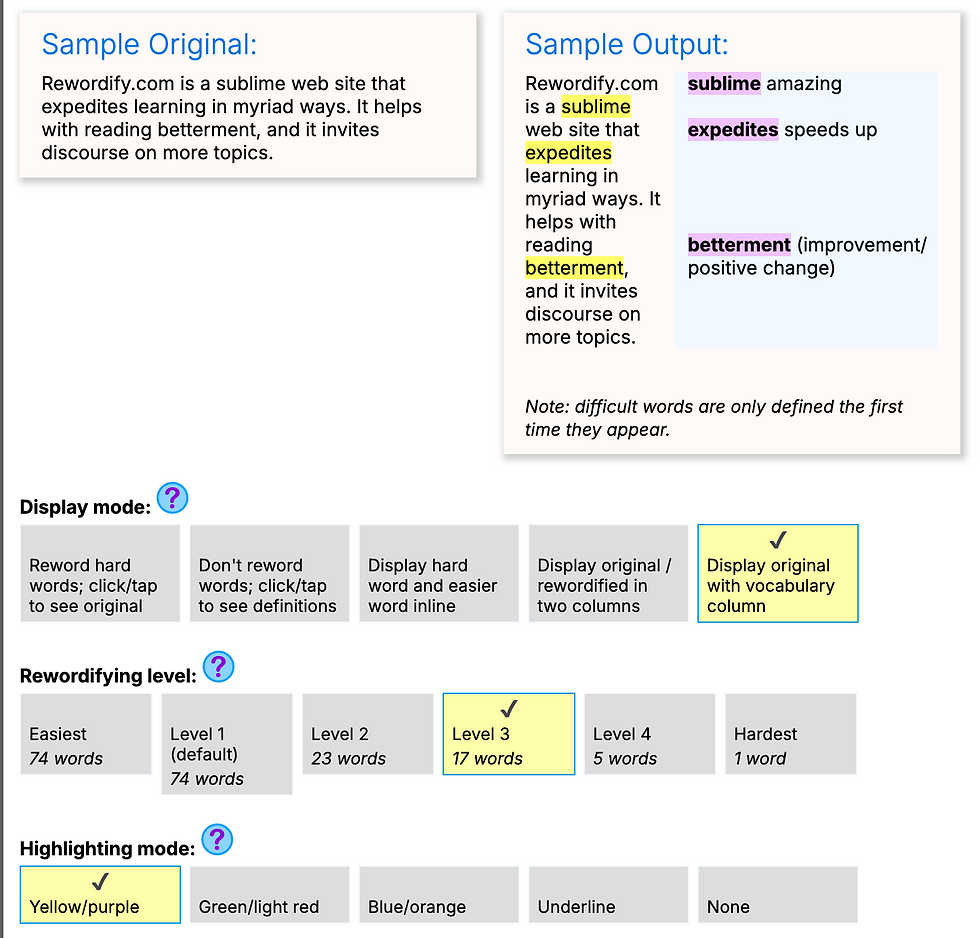
I really like this for two reasons. Firstly, just having the tricky words highlighted is useful in itself. As teachers, our vocabulary is generally pretty good, so we aren’t always aware of which words are going to trip students up. Secondly, you keep the proper article in front of students rather than a watered-down version, with the support sitting alongside it.

You can print it by selecting the 'Text with vocabulary' option.
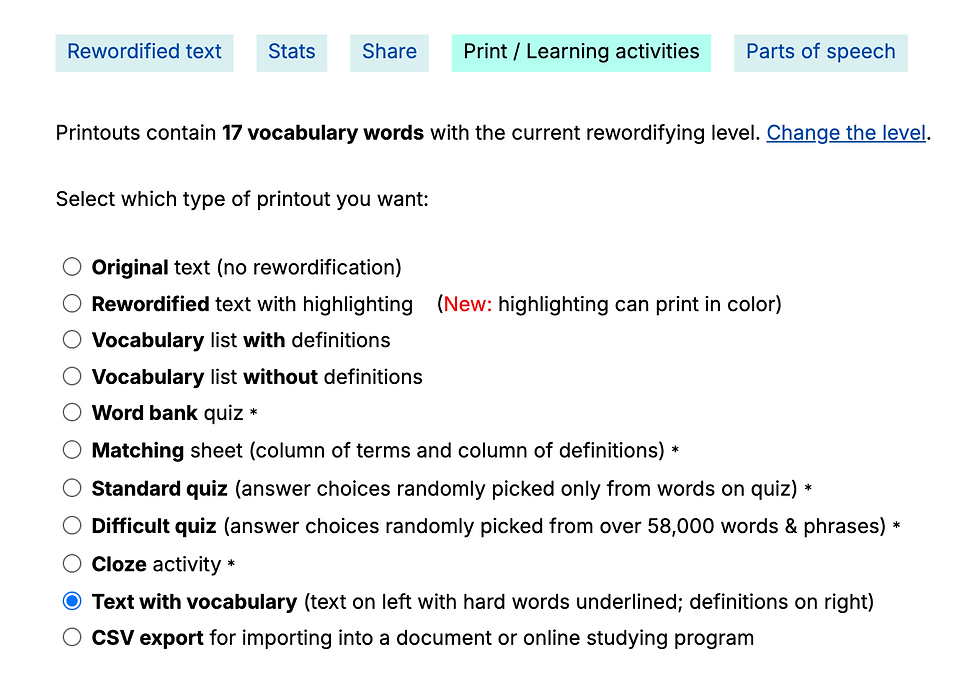
A few other settings worth knowing about:
• Rewordifying level. This is basically the dial for how hard a word has to be before it gets flagged. On the easiest setting it highlights more words; on the hardest it highlights fewer, and only the really chunky ones. Worth a play to find the level that suits your class.
• Highlighting colours. If you’re printing in black and white, switch to the underline mode so the highlighted words still show up on the page.
2. Print Friendly PDF (Chrome extension)
My second tool is the Print Friendly PDF Chrome extension, and I’ve mentioned this one before because it’s probably my most-used Chrome tool. It’s free, it sits in your toolbar, and it sorts out the formatting of an article for you. (I think there are also versions for Firefox, Safari, and Edge). If you’d rather not install anything at all, there’s a version on the website where you just paste in the URL and it does the same job for you.
Here’s the problem it solves. You find a great article online (in my example I’m using this Economics Observatory piece on scenarios for UK inflation), but the actual web page is cluttered: adverts, links, related-story boxes, all the stuff down the sides that I really don’t need my students to have. I just want them to have the text.

If you just hit Ctrl+P at that point, the article often comes out a mess. It makes no sense on the page and is really hard to read. So without the extension, what you usually end up doing is copying and pasting the text out and then fiddling about with it to make it usable. A bit of a palaver.

With the extension, I just click the Print Friendly PDF button and it drops the article straight onto a clean page, ready to print and hand out. You can tweak the margins and so on in the settings, and if there’s a bit you don’t want (an image, say) you just click on it and it’s deleted.

Overall it means I’m spending my time finding articles and thinking about them, rather than wrestling them onto a page nicely.
So there you have it: two small tools, both of which take a bit of the friction out of using real articles with your classes. The fuller write-up of the talk on improving economic writing is coming soon.